Connected POS / ERP
Push the completed sale from your POS or ERP system directly to the paired tablet.

How it works
See how Extend helps store teams capture passport or ID information and contact details on a paired tablet, review them, and submit a tax-free transaction.
Start the process
Extend can receive transactions in two ways, giving you flexibility based on your store setup.
Push the completed sale from your POS or ERP system directly to the paired tablet.
Upload or send a PDF invoice when a direct integration is not available.
Follow the journey
Receive transaction
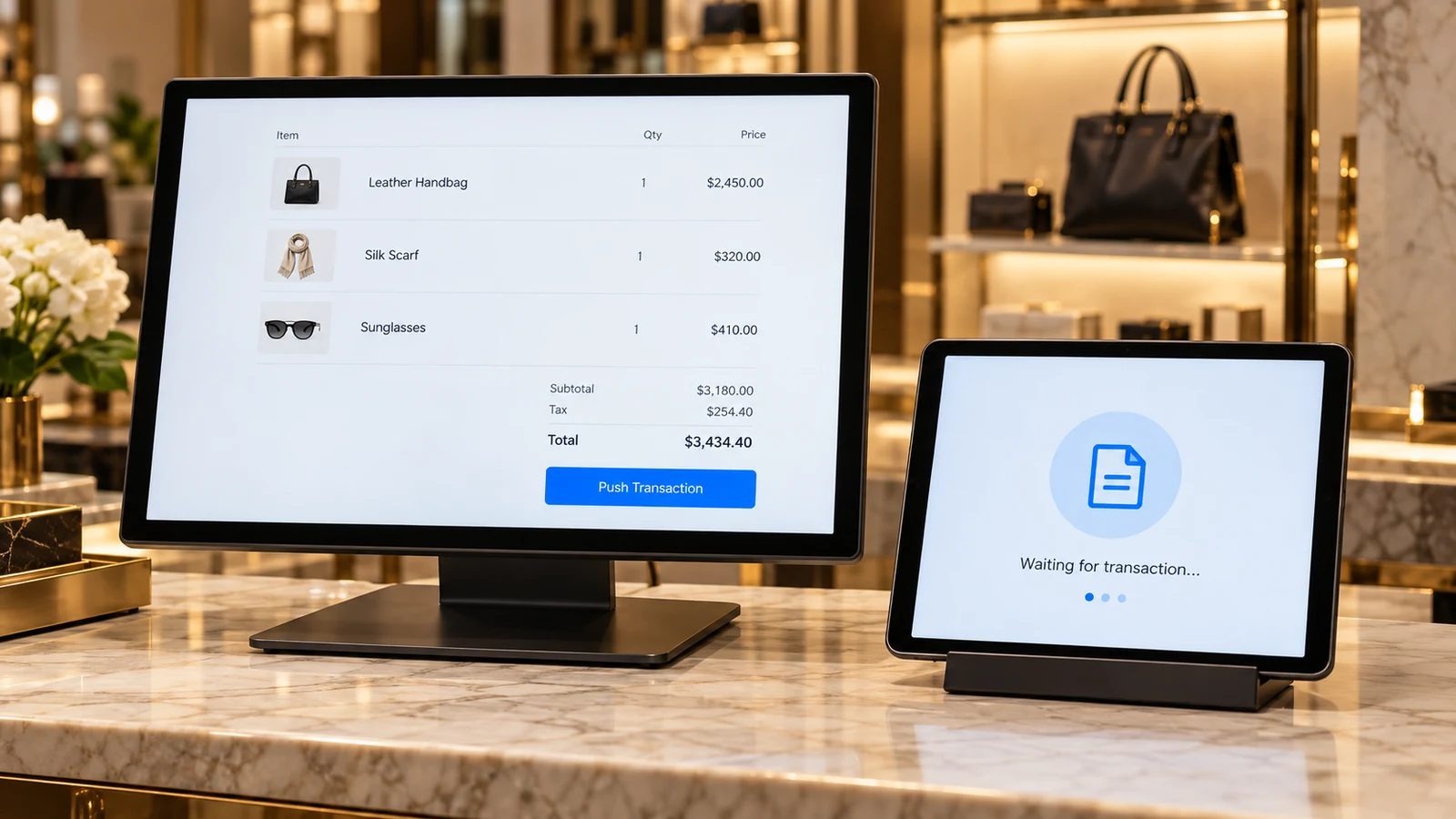
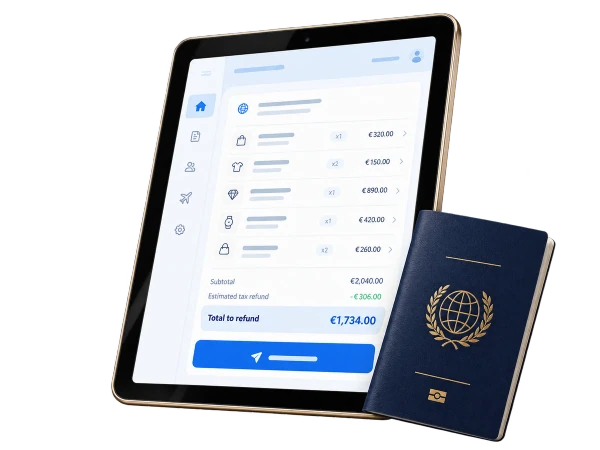
After completing the sale, your cashier pushes the transaction to the paired tablet. The invoice, items and total are instantly available in Extend.
Review invoice
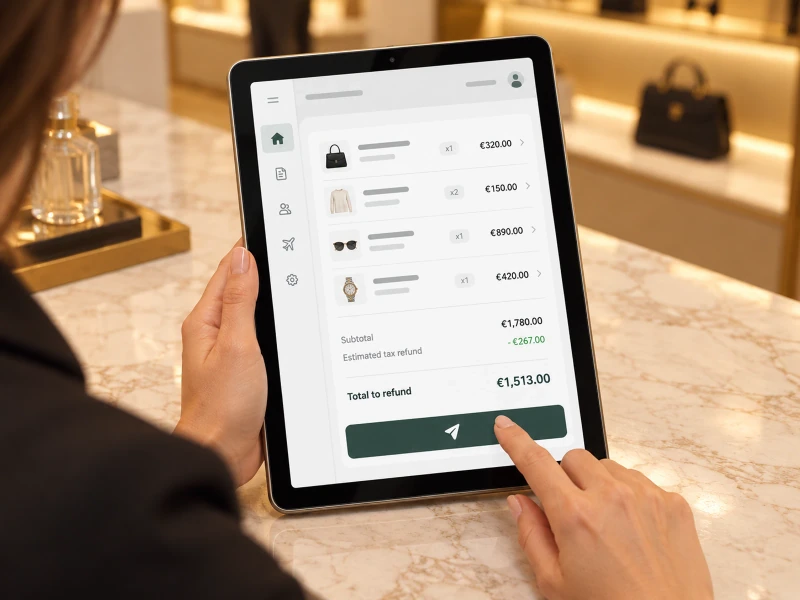
Your cashier reviews the invoice on the tablet, including items, VAT and total, to make sure it matches the POS.
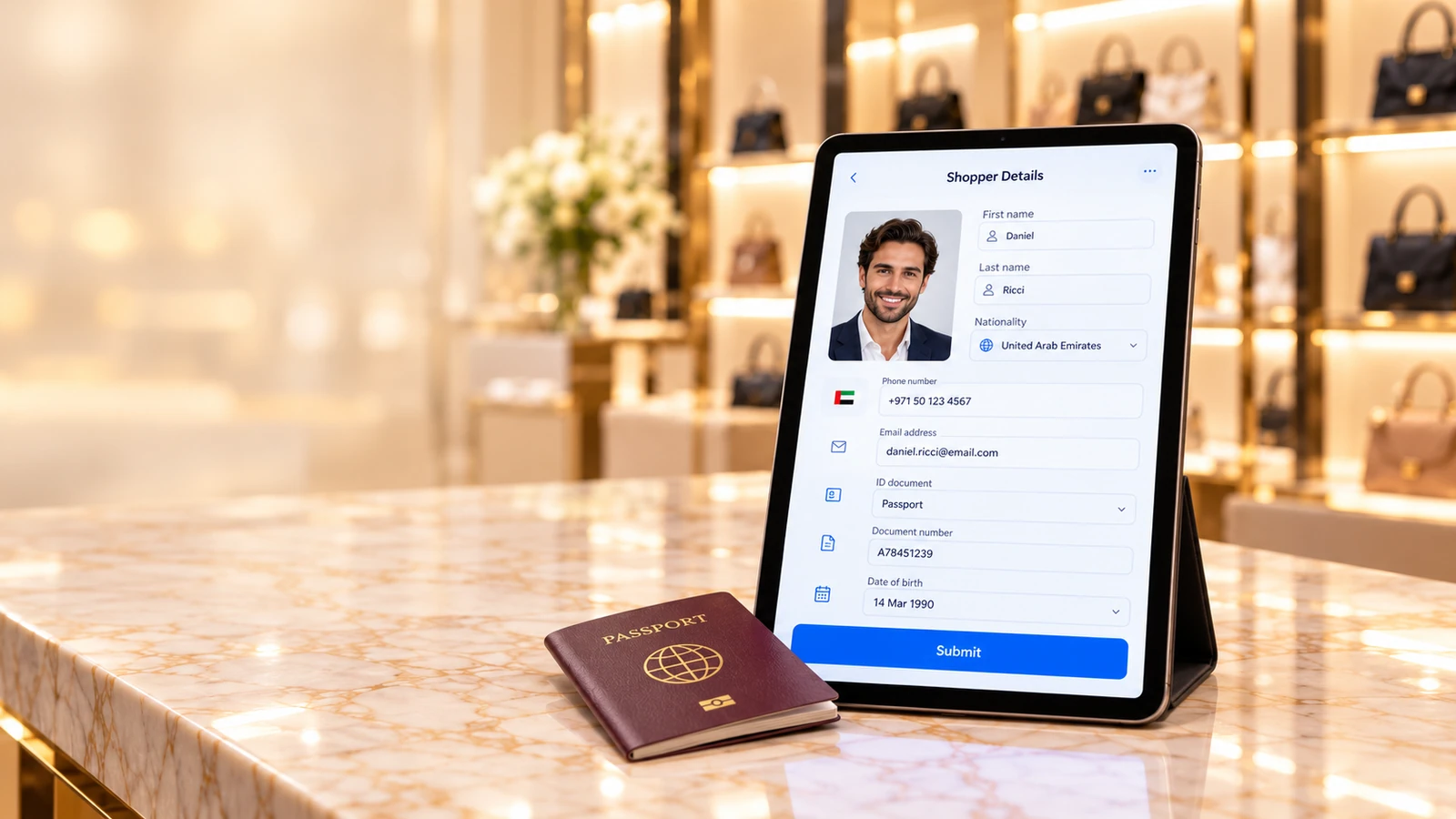
Scan passport or ID
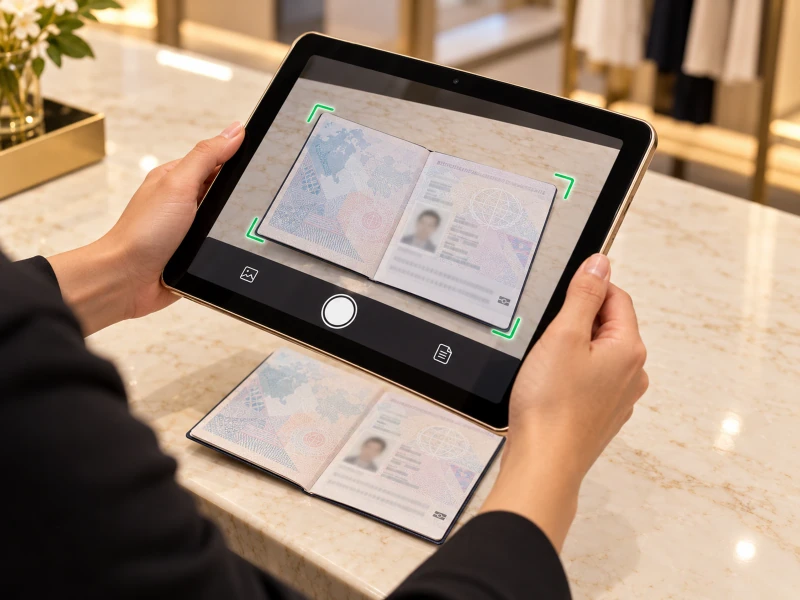
Tap “Scan Passport” and hold the tablet’s rear camera over the customer’s passport or ID. Extend extracts the details for staff to verify and correct before submission.
Complete shopper details
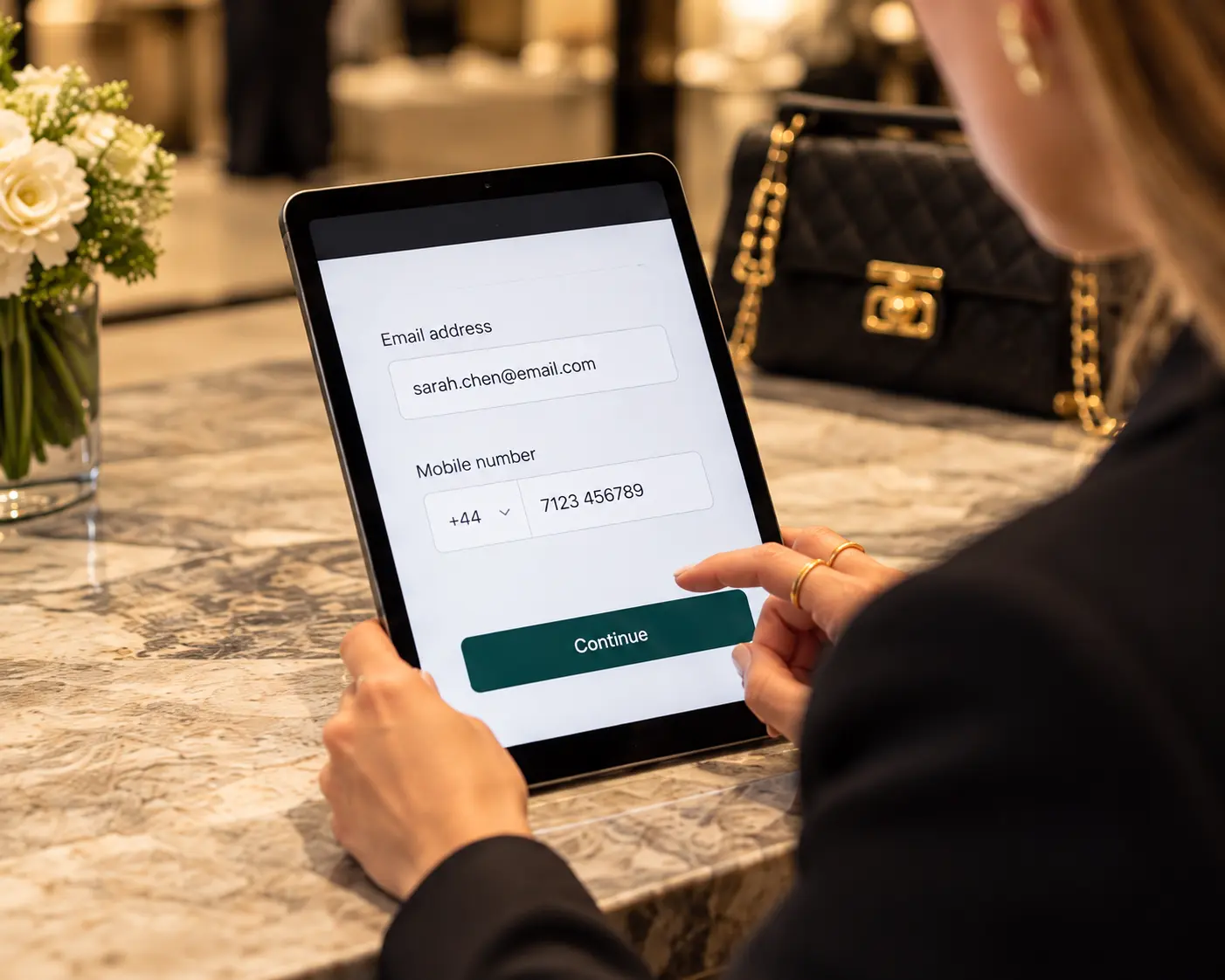
Collect the customer’s email address and mobile number for the tax-free transaction.
Review and continue
Review all captured information, correct it where needed, and submit it to the configured tax-free provider.
What happens next?
The same customer details can be used for different processes, depending on your store’s requirements.
Submit the captured passport and contact details to your configured tax-free provider (e.g. Planet Tax Free) and receive the response and tag number.
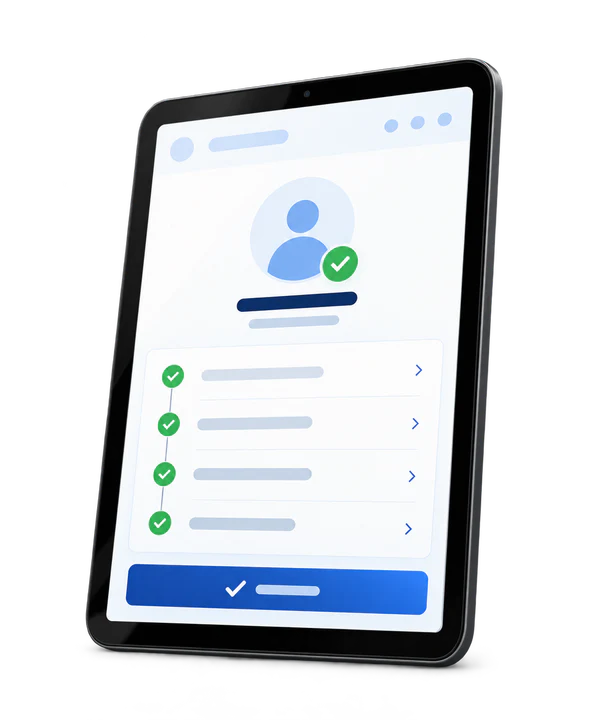
Use the reviewed customer details to create or complete a customer profile in your approved onboarding workflow. Availability depends on the configured integration.
Getting started
Extend is designed for a smooth and straightforward deployment.
Set up your company, branches and processing options in the Extend portal.
Integrate with your POS/ERP or use PDF invoice intake.
Activate the tablet and pair it with your store or station using a secure QR code.
Run a test transaction to make sure everything is working for your team.
Ready to see it in your store?
Book a personalized demo and we’ll walk you through Extend using your store setup, POS system and specific requirements.